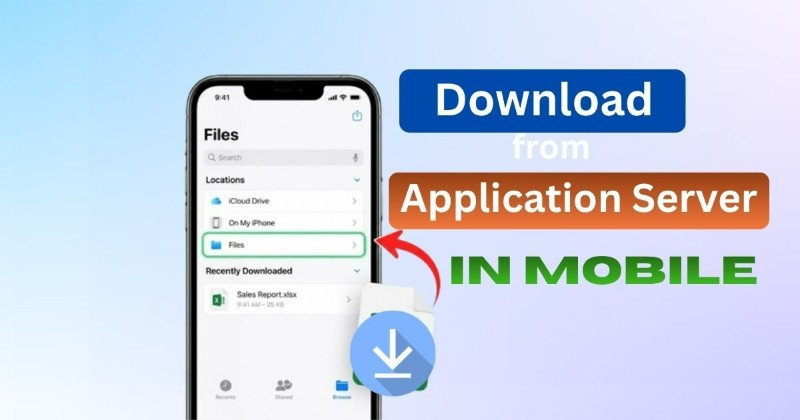
Today, many companies and organizations use application servers to store and manage reports, customer details, sales data, employee records, and other information. Sometimes you may need to download this information as an Excel file directly to your mobile phone.
The process is usually simple if the application provides an Export or Download Excel option. You do not normally need any special server application for this.
What Is an Application Server?
An application server is a system that runs an application and provides data or services to users through a network. For example, a company may store its sales reports on a server, and employees can access those reports through a mobile app or website.
When you select an Excel report, the server prepares the file and sends it to your phone.
How to Download an Excel File on Mobile
First, open the official mobile application or website connected to the application server. Log in with your authorized account and open the report or data you want to download.
Look for an option such as Download Excel, Export Excel, Export Report, or Download. Select it and choose the required date, report, or other filters if available.
After you start the download, wait for the server to prepare the file. Once it is completed, the Excel file will normally be saved on your phone.
On Android, you can usually find it in Files/File Manager → Downloads. On iPhone, check the Files app → Downloads.
How to Open the Downloaded Excel File
The downloaded file will usually have an .xlsx extension. You can open it using Microsoft Excel, Google Sheets, Apple Numbers, or another compatible spreadsheet application.
If the file does not open, check whether you have a suitable spreadsheet app installed and try downloading the file again.
What If There Is No Excel Download Option?
If you cannot find an Excel option, your account may not have permission to export the report. Some applications allow users to view information but do not allow them to download it.
The administrator may also have disabled Excel exports for security reasons. In this case, contact the application administrator instead of trying to bypass the restriction.

What If the Download Is Not Working?
Check your internet connection first. Then make sure you are still logged in and have enough storage space on your phone.
If the report is very large, the server may take some time to generate it. Try using a smaller date range or fewer filters.
If the file downloads but is empty, check your selected filters because there may be no data for that particular period.
Do You Need a VPN?
Usually, no. A VPN is not required for normal Excel downloads.
However, some company or private application servers can only be accessed through the organization’s VPN. If your company provides a VPN, use the official VPN and instructions given by the organization.
Is It Safe to Download Excel Files?
Yes, when you are downloading from an official and trusted application server. Always make sure you are using the correct application or website.
Be careful with unknown Excel files, especially if they ask you to enable macros or other special features. Also avoid sharing company reports or personal information with unauthorized people.
The Final Words
Downloading an Excel file from an application server on mobile is generally easy. Log in → open the report → select Export/Download Excel → wait for the file → find it in Downloads → open it with a spreadsheet app.
The exact buttons can be different depending on the application, but the basic process is almost the same. If the option is missing or access is denied, the problem may be related to your account permissions or the server settings.