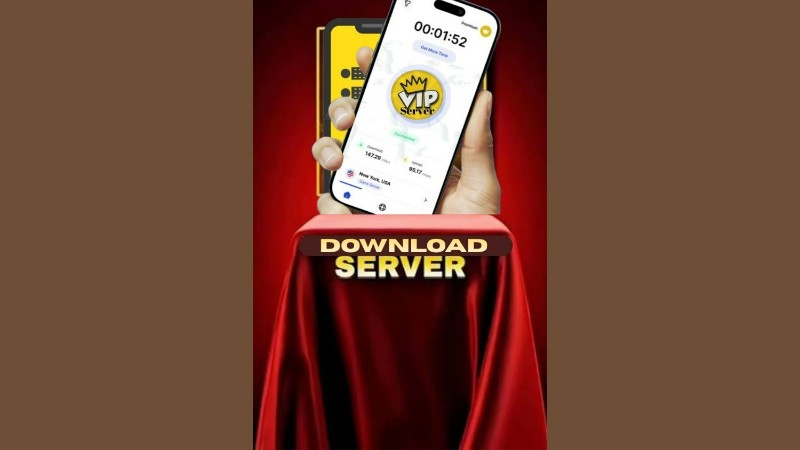
How to Download Server Applications on Mobile Safely and Securely. Today, smartphones can do much more than calling, messaging and watching videos. With the right application, a mobile phone can also connect to a server, manage files, run a small local service, connect to a remote computer, or even be used for testing websites and network applications.
Because of this, you may come across terms such as server, server application, VPN, remote server, FTP server, web server and SSH. For a new user, these terms can be confusing.


Downloading a server-related application is also a little different from downloading a normal entertainment app. Some applications may need access to files, networks, storage or other sensitive features. Therefore, it is important to download them from a trusted source and understand what the application actually does before giving it access.
In this guide, we will explain what a server is, what a VPN is, how they are connected, what server applications are used for, how to download them safely on a mobile phone, and what precautions you should take.
What Is a Server?
A server is a computer or software system that provides a service, information or resources to other devices over a network. For example, when you open a website on your phone, your browser sends a request to a server. The server processes the request and sends the required website information back to your phone.
A server can store files, run applications, manage databases, host websites, handle emails, manage online games and perform many other jobs. In simple words, a server is a system that provides something to other devices when they request it.
A server does not always have to be a huge computer. It can be a powerful machine in a data center, a cloud computer, a computer at home or even a mobile phone running suitable server software.
What Is a Server Application?
A server application is software that allows a device to provide a particular service to another device or application. For example, a web server application can allow a computer to provide web pages. An FTP server can allow files to be transferred between devices. An SSH server can allow authorized users to connect to a computer remotely.
On Android, some applications can also turn the phone into a small local server for specific purposes. However, a server application does not automatically turn your phone into a professional internet server. The type of service, network connection, hardware, operating system and configuration all matter.
Why Would Someone Use a Server Application on a Mobile?
There are several useful reasons. You may want to share files between your phone and computer without using a cable. A local file server can sometimes help with this. A developer may want to test a website or application directly on a phone. A user may want to access files stored on a device from another device on the same network.
Students can also use server applications for learning about networking, HTTP, FTP, local hosting and other technical concepts.
Some applications can also provide a simple local web server for testing HTML, CSS and JavaScript files. The important thing is to understand what the application is designed to do instead of installing a random application simply because its name contains the word “server.”
Common Types of Server Applications
There are many different types of server applications. A web server is used to provide websites or web pages. It can be useful for developers who want to test a website locally.
An FTP server can provide a way to transfer files between devices. However, users should understand the security settings before exposing an FTP service to an outside network.
An SFTP server uses SSH-based secure file transfer and is generally a better choice when secure file transfer is required.
An SSH server allows authorized users or devices to connect to a system remotely and perform supported operations.
A media server can allow compatible devices on a network to access music, videos or pictures.
A database server stores and manages structured information, although running a full database server on a phone is usually more useful for testing and learning than for serious production work.
Can a Mobile Phone Be Used as a Server?
Yes, a mobile phone can run some types of server software. For example, an Android phone can run certain local web servers or file-sharing servers. This can be useful for learning, testing and sharing files on a local network.
However, a phone has limitations. It has a battery, limited processing power, limited storage and usually does not have the same network configuration as a professional server. Mobile operating systems may also restrict background activity to save battery.
Therefore, a phone can be useful as a small or temporary server, but it is generally not a replacement for a proper cloud or dedicated server for a large website or important online service.
How to Download a Server Application Safely on Android
The safest approach is to first look for the application on the Google Play Store. Search for the exact application name and check the developer name carefully. Do not install an application just because its name looks similar to the software you wanted.
Google Play Protect checks applications and devices for potentially harmful behavior and can also scan applications installed from outside Google Play. Google recommends keeping Play Protect enabled.
Before installing, check the application’s description, developer information, reviews, update history and requested permissions.
You should also check whether the application has an official website or documentation. If the developer provides an official download page, use that page rather than an unknown download website.
What If the Server Application Is Not on Google Play?
Sometimes a legitimate application may not be available through Google Play. For example, a developer may distribute an Android application directly as an APK. In that situation, you should be much more careful. Download the APK only from a source that you can verify as the official developer or official project. Avoid random APK websites, modified versions and files shared through unknown links.
Android treats applications from outside normal app distribution channels as a higher-risk area, and Google Play Protect can scan applications installed from other sources. If you do not know who created the APK, it is better not to install it.
Do Not Trust an APK Just Because It Is Free
A common mistake is thinking that a free APK is automatically safe. An APK can contain harmful code even when the application looks useful. Be especially careful with websites offering:
- “Premium unlocked” versions
- “Pro free” versions
- Modified APKs
- Cracked applications
- Paid applications for free
- Applications with removed security features
These modified versions may have been changed by someone other than the original developer. For a server or VPN application, this can be particularly risky because such applications may handle network traffic, files or other sensitive functions.
Check App Permissions Before Using It
Permissions are an important part of mobile application security. Android provides a permission system that controls access to certain sensitive information and device features. Applications should request permissions that are necessary for their functions.
For example, a file server application may reasonably need access to selected files or storage. But if a simple server application asks for access that does not seem related to its purpose, stop and investigate before continuing. Do not automatically press Allow on every permission request.
Ask yourself: Why does this application need this permission? If you cannot find a reasonable answer, do not give it access until you understand the reason.
Keep Google Play Protect Enabled
Google Play Protect is an important Android security feature. It checks applications during installation and can periodically scan the device. If it detects potentially harmful software, it can warn you and may disable or remove the harmful application.
You can check it through: Google Play Store → Profile picture → Play Protect It is generally better to keep the protection enabled.
How to Check Whether Your Android Phone Is Play Protect Certified
You can also check whether your device is Play Protect certified.
Open: Google Play Store → Profile picture → Settings → About → Play Protect certification
Google says certified devices have passed Android compatibility testing. Devices that are not certified may have security and compatibility limitations. This is particularly worth checking if you are using a modifi
How to Safely Install a Server APK
If you have verified that an APK genuinely comes from the official developer, download it carefully. First, download the file from the official source.
Then check that the file name and application information match what the developer has published. If the developer provides a cryptographic checksum such as SHA-256, you can compare the downloaded file’s checksum with the official value. This helps verify that the file has not been changed during distribution.
After that, Android may ask you to allow installation from the source you used. Do not enable this permission permanently just because one application requires it.
After installation, review the application’s permissions and security settings. If you do not need the APK anymore, it is also a good idea to turn off permission for that source to install unknown applications.
Why You Should Avoid Random Server Applications
A server application can potentially open a network service on your device. That does not mean every server application is dangerous, but it means you should understand what network access it provides. For example, a poorly configured file server could accidentally expose files to other devices on the same network.
An application could also contain vulnerabilities or unwanted software. This is why the source of the application and its configuration are both important.
How to Use a Server Application on Mobile
The exact steps depend on the application, but the general process is similar. First, install a trusted server application. Open it and select the type of service you want to run. Configure the required folder, port or service settings.
Start the server. The application will usually display an address such as a local IP address and port. You can then connect to that address from another device on the same network if the application supports it.
For example, a local server may display something similar to: 192.168.x.x:8080
The exact address and port will depend on your network and application.Do not assume that every address shown by a server application is accessible from the public internet.
What Are the Benefits of Server Applications on Mobile?
Server applications can be useful for learning and experimentation. They can help you understand how websites, networks, file transfers and client-server communication work. They can also make it easier to transfer files between devices in some situations.
Developers can use local servers for testing applications and web projects. Students can use them to practice basic networking concepts without needing a separate computer for every experiment. They can also be convenient when you need a temporary service and do not want to set up a full server.
Disadvantages of Server Applications
Running a server can use additional battery, storage and processing resources. Some applications may also require network permissions or access to files. A badly configured server can accidentally expose private information.
If you make a server available over the internet, attackers may try to connect to it. There may also be compatibility problems between different devices, networks or operating systems. Therefore, users should only enable the services they actually need.
Important Safety Tips Before Running Any Server
Before starting a server application on your phone, keep a few basic rules in mind. Use applications from trusted developers and keep them updated. Do not give unnecessary permissions.
Use a strong password when the application supports authentication. Do not expose a server to the public internet unless you understand the risks. Avoid using simple passwords such as your name, phone number or 123456. Turn the server off when you no longer need it. Keep your Android operating system and applications updated.
If the application supports encryption, use the secure option rather than an older unencrypted protocol when appropriate. Do not share server login information with unknown people.
The Final Words
The safest way to download a server or VPN application is to start with the official Google Play Store or the official developer website. Check the developer, read the application’s information, review permissions and keep Google Play Protect enabled. Android’s security model also gives applications limited access by default and uses permissions for access to sensitive features.
Most importantly, do not install a random APK simply because it promises a free premium feature or an unlocked version. A server or VPN application can have access to important network and device functions, so its source matters.
For beginners, the best approach is to start with a local server on your own network, learn how IP addresses, ports and client-server communication work, and only later consider making a service accessible from the wider internet. This gives you a better understanding of both the benefits and the security risks.




1 thought on “Download Server Applications on Mobile Safely and Securely”