Android phones give us many smart features, but they also have some small risks that most people do not notice. One common problem is that anyone can open your Quick Settings panel even when your phone is locked. From there, they can turn off Wi-Fi, Location, Bluetooth, or even switch on Airplane Mode. If this happens, your phone becomes difficult to track or control remotely.
To solve this issue, Android gives a built-in security tool that blocks Quick Settings from the lock screen. In this guide, you will learn how it works and how you can enable it in simple steps.
Why Locking Down Quick Settings Is So Important
Most people think their phone is fully safe once a PIN or fingerprint lock is set. But that is not true if Quick Settings are still open on the lock screen. Anyone can swipe down and disable important functions without knowing your password.
When Quick Settings remain open:
- A thief can instantly turn on Airplane Mode, making your phone go offline.
- Someone can turn off Location, which affects the accuracy of tracking apps.
- They can switch off Wi-Fi or Mobile Data, stopping remote wipe or remote lock tools.
- They may also disable Bluetooth, which affects connected devices.
Once these settings are turned off, your phone becomes silent. You cannot locate it, lock it, or erase its data. This is why securing Quick Settings is a must for every Android user.
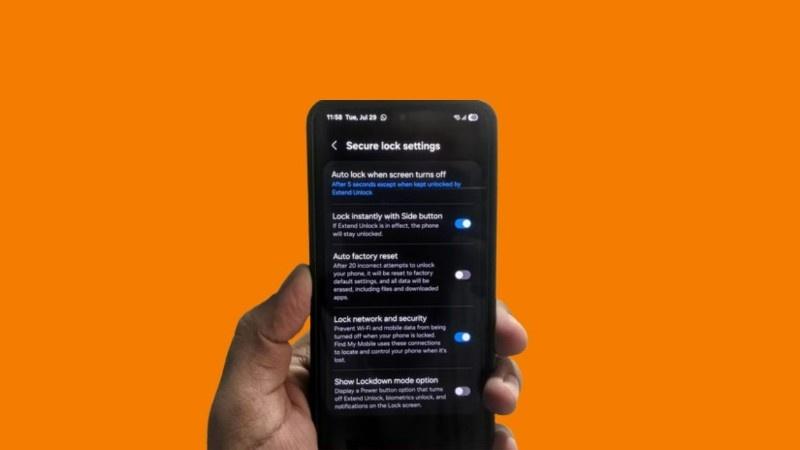
The good news is that Android has a simple option called Lock Network and Security. When this option is enabled, nobody can change network-related toggles without unlocking the phone first.
It works quietly and does not disturb your normal usage. But it adds a strong layer of security and gives you more control over your own device.
How to Lock Down Quick Settings on Android
These steps work on most Android phones running Android 9 or newer, including Samsung, Pixel, OnePlus, Xiaomi, Vivo, and Motorola.
Step 1:
Open the Settings app on your phone.
Step 2:
Scroll and find Lock Screen, Security, or Password & Security (name changes by brand).
Step 3:
Tap Secure Lock Settings or Additional Lock Screen Settings.
Step 4:
Enter your PIN, Pattern, or Password if asked.
Step 5:
Look for the option named:
- Lock Network and Security
- Secure Quick Settings
- Block Quick Toggles on Lock Screen
- Restrict Control Center When Locked
Step 6:
Turn the toggle ON.
Now, whenever your phone is locked, nobody can turn off Wi-Fi, location, or mobile data. Airplane Mode will also not work until the phone is unlocked.
This improves phone tracking, keeps security apps active, and protects your private information.
How This Feature Protects You
Once Quick Settings are locked, your device becomes much harder to misuse. Here is what changes:
- Airplane Mode cannot be switched on secretly.
- Wi-Fi and Mobile Data stay active unless you change them.
- Location keeps working for tracking apps.
- remote wipe and remote lock tools continue working.
- Bluetooth toggles cannot be used by strangers.
Your phone remains online and traceable, which increases the chance of recovering it if it gets stolen or lost.
You do not need any app for this setting. It works inside the phone system itself.
Turn On Lockdown Mode for Extra Privacy
Quick Settings lock is great, but Android also includes another strong protection tool called Lockdown Mode. This is a special privacy feature for situations where you need maximum security.
Lockdown Mode:
- turns off fingerprint and face unlock,
- hides all lock screen notifications,
- blocks voice assistants,
- and requires your PIN or password only.
This mode is very useful if you feel someone might try to unlock your phone without permission or if you are in a risky public place.
How to Enable Lockdown Mode on Different Phones
On Google Pixel
- Hold the Power Button
- Tap Lockdown
- Phone enters secure mode instantly
On Samsung Galaxy Phones
- Open Settings
- Tap Lock Screen
- Tap Secure Lock Settings
- Enter PIN / Password
- Switch Show Lockdown Option to ON
- Long press power button and choose Lockdown
On Other Android Phones (OnePlus, Realme, Motorola, Vivo, etc.)
- Search “Lockdown” in the Settings search bar
- Or find it under Security, Lock Screen, or Display
- Enable the feature and access it from the power button menu
Lockdown Mode stays active only until you unlock your device again. After that, fingerprint and face unlock work normally.
Why You Should Use Both Features Together
Using Lock Network and Security + Lockdown Mode gives your phone total protection in all situations:
- Thieves cannot turn off your network
- Remote wipe tools continue working
- Your location stays active for tracking
- Your notifications remain private
- Strangers cannot unlock your phone by force
- Only your password can open the phone again
These options do not slow down your phone or create pop-ups. They simply give you more safety in daily life.
The Final Words
Android phones already come with many useful security tools. You only need to turn them on. Locking down Quick Settings protects your device from losing network access. Lockdown Mode protects your personal data and privacy.
Both features are free, simple, and extremely effective.
If you want your phone to stay safe in every situation, turn on these settings today.