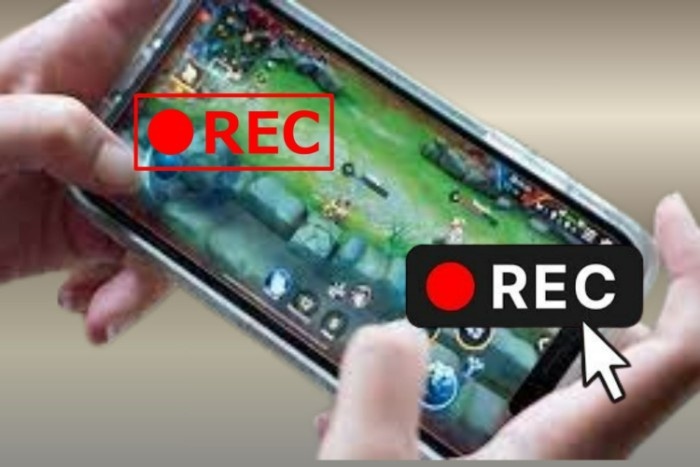
Recording your gameplay on Android, iPhone, or computer is now very easy. Many people love to capture their gaming moments and share them on YouTube, Instagram, or with friends. If you are a gamer, recording your gameplay helps you show your skills, funny moments, or tutorials to others.
Earlier, recording gameplay was a bit difficult and needed expensive devices. But now, every phone and computer comes with built-in screen recorders. You can even use free apps to record your games with good quality. Let’s see how you can record your gameplay smoothly on any device.
Recording Gameplay on Android Phones
Most Android phones already have a screen recording option built in. You don’t need to install extra apps for that. You can start recording your gameplay in just a few taps.
Steps to record on Android:
- Swipe down from the top of the screen to open Quick Settings.
- Find and tap on Screen Recorder.
- Choose your recording settings (sound, quality, etc.).
- Start the game you want to record.
- Tap the red record button to start.
- When done, tap Stop to save the video.
Your video will be saved in the gallery automatically. You can later edit it, add voice or music, and upload it anywhere you like.
If your phone does not have a built-in screen recorder, you can use third-party apps like AZ Screen Recorder, Mobizen, or DU Recorder. These apps are very simple to use and give you good-quality videos.
Tips for better results:
- Turn on Do Not Disturb mode before recording to avoid notifications.
- Make sure your phone has enough storage space.
- Keep your battery above 50% while recording.
- Use good lighting if you want to record your face using the front camera.
Recording Gameplay on iPhone
iPhones also have a built-in screen recorder. You can record your games easily in HD quality.
Steps for iPhone:
- Go to Settings → Control Center → Add Screen Recording.
- Swipe down from the top-right corner and tap the Record button.
- Start your game and play as usual.
- When finished, tap the red bar or timer to stop recording.
Your recording will be saved in the Photos app. You can edit, trim, or add effects directly from the Photos editor.
If you want to include your voice or face, you can turn on the Microphone option before recording.
Extra Tip: You can also connect your iPhone to a Mac and use QuickTime Player to record gameplay with even better quality and sound.
Recording Gameplay on PC or Laptop
If you play games on a computer, recording is also easy. Windows and macOS both have free options to record gameplay.
For Windows:
- Press Windows + G to open the Xbox Game Bar.
- Click on the record button.
- Play your game, and when done, click stop.
- The video will be saved automatically in the “Videos → Captures” folder.
For Mac:
- Press Shift + Command + 5 to open screen capture tools.
- Select the screen area you want to record.
- Click Record and start your game.
You can also use free software like OBS Studio, Bandicam, or NVIDIA ShadowPlay if you want professional-quality videos. These tools allow you to record your webcam, add commentary, and even stream live on YouTube or Twitch.
Recording Gameplay from Consoles
If you use gaming consoles like PlayStation, Xbox, or Nintendo Switch, recording your gameplay is also simple.
PlayStation:
- Press the Share button on your controller.
- Choose Start Recording.
- After finishing the game, press it again to stop and save.
Xbox:
- Double-tap the Xbox button and select Record from now.
- You can find your clips in the Captures section.
Nintendo Switch:
- Hold down the Capture button during gameplay.
- The console will automatically save a short video.
For longer videos, you can connect your console to a computer using a capture card like Elgato or AverMedia. This gives you high-quality gameplay videos that you can edit later.
Tips for Better Gameplay Recording
Make sure your internet connection is stable if you’re playing online games.
Close background apps to prevent lag or frame drops.
Keep your phone or computer cool — overheating can slow down recording.
Always record in good lighting if you want to include your face.
Use headphones with a microphone for clear voice commentary.
Editing and Sharing Your Gameplay
After recording, you can make your gameplay more fun by editing. You can add background music, slow motion, text, or commentary. There are many free editing apps like CapCut, VN Editor, and InShot that are easy for beginners.
Once your video looks good, you can upload it to YouTube, Instagram Reels, or Facebook Gaming. Regular uploads can even help you grow your gaming channel or community.
The Final Words
Recording gameplay is not hard anymore. Whether you play on Android, iPhone, PC, or console, there are easy tools available for everyone. You can capture your best moments, funny fails, or tutorials and share them with the world.
Just remember to keep your device ready — enough storage, strong internet, and good lighting. With these small steps, your recordings will look smooth, clear, and professional even if you’re just starting out.