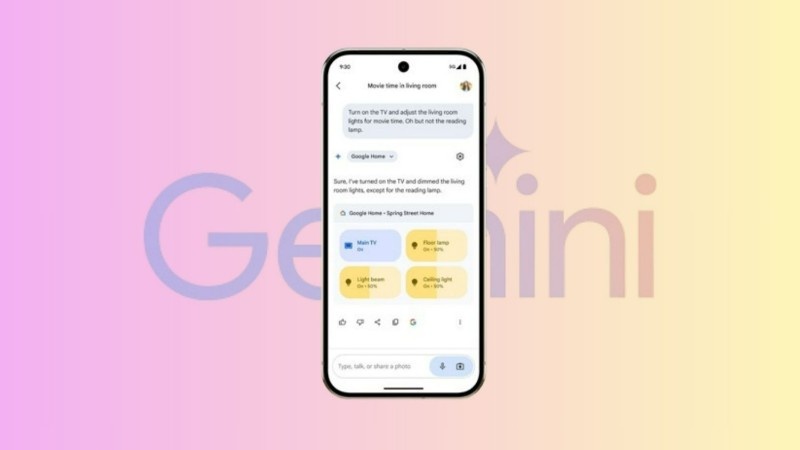
Artificial intelligence tools are becoming part of daily life. Google Gemini is one such AI assistant that helps users ask questions, write content, solve problems, and more. But many users do not know that Gemini saves chat history by default. This means your conversations can stay linked to your Google account.
Some people are fine with this. Others worry about privacy. They want to use Gemini but do not want their chats stored for a long time. The good news is — Google gives options to control and stop chat history.
In this guide, we will explain in very simple English how to turn off chat history in Google Gemini and how to keep your personal data safer.
What Is Chat History in Google Gemini?
When you talk with Gemini, your messages are saved in your Google account activity. This saved data helps Google improve AI responses and also lets you reopen old chats later.
But saved chats may contain personal questions, private ideas, or sensitive information. If you share your Google account with others or use a public device, this stored history may become a privacy risk.
That is why many users prefer to stop chat history or delete it regularly.
Why You Should Control Gemini Chat History
Privacy is the main reason. When chat history is on, your conversations are stored online. Even if Google keeps data secure, some users simply feel better when nothing is saved.
Another reason is cleanliness. Old chats can build up over time. This makes your activity page messy and harder to manage.
Finally, turning off history also gives peace of mind. You can ask questions freely without thinking about saved records.
How to Check If Gemini Is Saving Your Chats
Before changing anything, you should first check if chat saving is active.
Open Google Gemini in your browser or app. Then go to your Google account activity page. If you see past Gemini conversations there, it means history saving is turned on.
If you do not see any Gemini activity, history may already be off.
Steps to Turn Off Chat History in Google Gemini
Stopping chat history is simple if you follow carefully.
First, open Google Gemini. Look for the settings or account menu. From there, go to Activity Controls. Inside this page, you will find an option related to Gemini Activity or AI Activity Saving.
Turn this option off. Once turned off, new Gemini chats will no longer be saved to your account.
This does not delete old chats. It only stops future saving.
How to Delete Old Gemini Chat History
If you already have saved chats, you can remove them manually.
Go to My Activity in your Google account. Filter the activity to show only Gemini conversations. Then select the chats you want to remove and delete them.
You can delete one chat, a group of chats, or even the entire history at once.
Once deleted, these chats cannot be recovered. So double-check before confirming.
Auto-Delete Option for Better Privacy
Google also offers an auto-delete feature. With this, your saved activity is removed automatically after a set time.
You can choose to auto-delete activity every few months. This way, even if history is on, old data does not stay forever.
This is a good option for users who want convenience but still care about privacy.
Does Turning Off History Affect Gemini Usage?
No. Gemini will still work normally. You can ask questions, generate text, and use all features.
The only difference is that your chats will not be stored in your account history. You also will not be able to reopen old conversations once history is off.
But for privacy-focused users, this is a fair trade.
Important Privacy Tips When Using Gemini
Even with history turned off, it is still smart to follow basic safety habits. Avoid sharing passwords, bank details, or personal ID numbers in any AI chat. Also, log out from shared devices after use.
These small habits help keep your information safe online.
Final Words
Google Gemini is a powerful AI tool, but privacy control is in your hands. By stopping chat history and cleaning old data, you can use Gemini with more confidence and less worry.
Taking two minutes to adjust these settings can make a big difference in protecting your personal information.