Using WhatsApp on more than one device was not possible in the past, but now it’s very easy. WhatsApp has added a new feature called Companion Mode and Multi-Device Support. This allows you to use the same WhatsApp account on different phones, tablets, or even computers at the same time.
This update is very helpful for people who use WhatsApp for business or those who want to stay connected on multiple devices. You don’t need to log out or switch between phones anymore. Let’s understand how it works and how you can set it up easily.
What is WhatsApp Companion Mode?
Companion Mode is a new feature that helps you link your WhatsApp account to other smartphones. Earlier, you could only connect to WhatsApp Web or Desktop, but now you can use the same WhatsApp on another phone even without inserting your SIM card.
All your chats, media, and contacts will sync automatically across all linked devices. You can send and receive messages, voice notes, and photos from any of your connected phones. Even if your main phone is switched off, WhatsApp will still work on other linked devices for up to 14 days.
How to Use WhatsApp on Multiple Phones
Here are simple steps to use WhatsApp on more than one phone:
- Install WhatsApp on your second phone.
Download it from Google Play Store or Apple App Store. - When it asks for your number, tap the three dots (⋮) on the top right corner and choose “Link to existing account.”
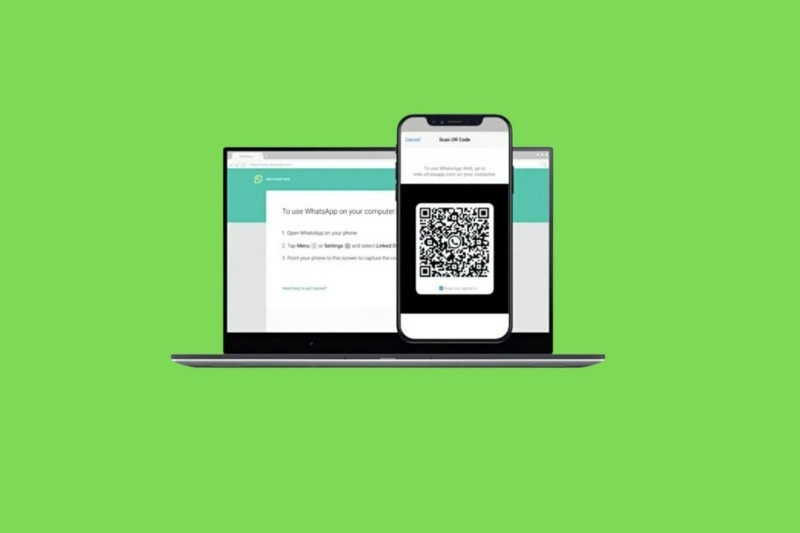
- A QR code will appear on your second phone’s screen.
- On your main phone, open WhatsApp → tap Linked Devices → Link a Device → and scan the QR code on your second phone.
- Wait a few seconds, and all your chats will appear on the second device.
Now, both phones will work the same way — you can message, call, or share files from either of them.
Key Benefits of Using WhatsApp on Multiple Devices
- You can use WhatsApp on phones without SIM cards.
- You can link up to four devices at the same time.
- Messages and calls are end-to-end encrypted, just like on your main device.
- Works perfectly on Android, iPhone, desktop, and tablets.
- No need to keep your main phone always connected to the internet.
This is perfect for people who use one phone for personal use and another for work.
Using WhatsApp on Desktop or Web
You can also use WhatsApp on your computer or laptop. Just go to web.whatsapp.com or open the WhatsApp Desktop app. Then scan the QR code using your phone’s Linked Devices option.
All your chats, groups, and media will appear instantly. You can type faster using your computer keyboard and even make voice and video calls directly from the desktop app.
Supported Devices and Limitations
You can use WhatsApp Multi-Device mode on:
- Android phones
- iPhones
- iPads
- Laptops or desktops (Windows & macOS)
However, some features like live location and broadcast lists may not work perfectly on secondary devices yet. Also, your main phone must connect to the internet at least once every 14 days to keep other devices active.
Tips for Better WhatsApp Multi-Device Experience
- Keep auto-sync enabled so chats and media update in real time.
- Avoid using public Wi-Fi when linking new devices for better security.
- Keep WhatsApp updated to the latest version on all your devices.
- If you face any issue, unlink the device and link again freshly.
The Final Note
The new WhatsApp multi-device support is a big improvement for users everywhere. You can now use the same WhatsApp account on several phones, tablets, or computers without worrying about losing chats or switching accounts.
It’s a great update for those who manage business messages, use multiple phones, or simply want more flexibility in communication. Whether you’re chatting with family or running a business, this feature makes WhatsApp even more powerful and convenient.