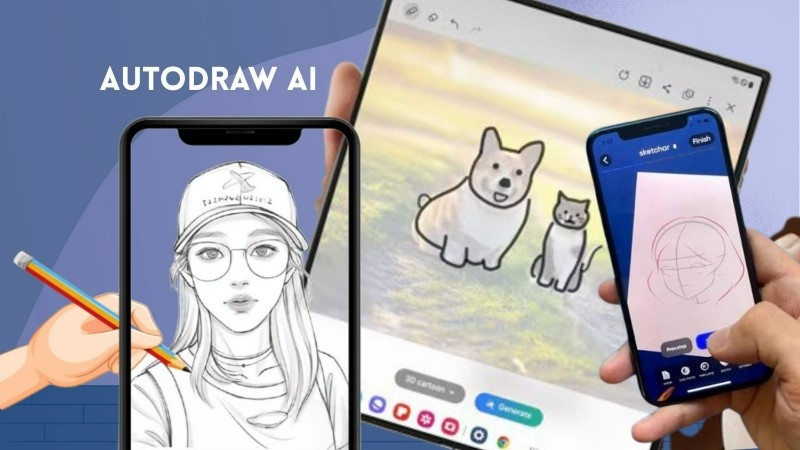
Drawing something from scratch can be difficult, especially when you are not good at drawing. You may have an idea in your mind, but when you try to draw it, the final picture may not look the same. This is where AutoDraw can be useful. It is a simple drawing tool that helps users turn rough sketches into cleaner drawings.
AutoDraw is made by Google and is designed for people who want to create simple drawings quickly. You do not need professional drawing skills to use it. You can draw with a mouse on a computer or use your finger on a supported touchscreen device. The tool then tries to understand what you are drawing and gives you suggestions.
What Is AutoDraw?
AutoDraw is a web-based drawing tool that combines normal drawing with machine-learning technology. You can start by making a rough drawing, even if the lines are not perfect. AutoDraw tries to recognize the shape and shows possible drawing suggestions.
For example, if you make a rough shape that looks like a fish, the tool may show different fish drawings. If you draw something that looks like a house, it can suggest a simple house icon. You can select the drawing that is closest to your idea and replace your rough sketch with it.
This makes the tool different from a normal drawing application. You do not have to spend a lot of time making every line perfect.
How Does AutoDraw Work?
The basic idea behind AutoDraw is quite simple. You first draw something roughly on the screen. The system looks at the shape and tries to understand what you are trying to make.
After that, it displays several possible drawings. These suggestions are based on the shape you have drawn. If one of the suggestions matches your idea, you can select it. The rough drawing is then changed into a cleaner illustration.
The result depends on how well the system understands your sketch. It may not recognize every drawing correctly, so sometimes you may need to draw again or choose another suggestion.
How to Use AutoDraw
Using AutoDraw does not require complicated installation. You can open the AutoDraw website in a compatible web browser and start creating a drawing.
Once the drawing area is open, choose the AutoDraw option and begin drawing with your mouse, touchpad, or touchscreen. Try to make the basic shape of the object instead of worrying about small details.
As you draw, AutoDraw will show possible suggestions. Select the suggestion that looks closest to what you wanted to draw. You can then continue editing the picture by adding colors, shapes, text, or more drawings.
When your design is ready, you can use the available sharing or download option to save your work, depending on the features currently available on the service.
Main Features of AutoDraw
One useful feature is its drawing recognition system. You can make a simple sketch and AutoDraw attempts to identify it. This is helpful for beginners who cannot draw clean icons by themselves. Another useful part is the collection of suggested drawings. Instead of creating a complete illustration manually, you can choose from the suggestions provided after making your rough sketch.
AutoDraw also provides normal drawing tools. You can use different colors, shapes, text, and other basic options to improve your design. This means you are not limited to the automatic suggestions. The interface is also quite simple. There are not too many complicated controls, so beginners can understand the basic functions without spending a long time learning the software.
What Can You Create With AutoDraw?
AutoDraw is mainly useful for simple illustrations and quick creative work. You can use it to make small drawings for school projects, presentations, social media ideas, invitations, or personal use.
For example, you can create a simple birthday card by drawing a cake and adding some text. You can also make a basic diagram, create a small visual for a presentation, or prepare a simple illustration for a blog or project.
It can also be useful when you want to explain an idea visually. Sometimes a simple drawing can explain something faster than a long written explanation.
AutoDraw for Students
Students can use AutoDraw for many simple school and college projects. If a presentation needs small illustrations, students can create them without learning professional graphic design software.
It can also be useful for making simple diagrams or visual examples. A student can quickly create an object, add text, and use the finished image in a project.
The main benefit is that students can focus more on their idea instead of spending too much time trying to draw perfect shapes.
AutoDraw for Bloggers and Content Creators
Bloggers and content creators can also use AutoDraw when they need a quick and simple illustration. It may be useful for creating an idea or basic graphic when a professional design is not required.
For example, if you are writing about a particular object and need a simple visual, AutoDraw can help you create a basic drawing. However, it should not be considered a replacement for professional graphic design software when you need advanced images.
Is AutoDraw an AI Image Generator?
AutoDraw is different from modern text-to-image AI tools. You do not simply type a long sentence and receive a detailed image.
Instead, AutoDraw mainly works with your rough drawing. Its technology attempts to understand your sketch and offers existing drawing suggestions that may match it.
So, if you are looking for realistic pictures, detailed artwork, or images generated from long text prompts, AutoDraw is probably not the right tool. It is better suited for quick and simple drawings.

Benefits of Using AutoDraw
The biggest benefit is its simplicity. Beginners can start drawing without needing advanced knowledge of graphic design.
It can also save time. Instead of carefully drawing an icon yourself, you can make a rough shape and select a cleaner suggestion.
Another good thing is that it can make drawing more enjoyable for people who are not confident about their artistic skills. Even a basic sketch can become a cleaner-looking illustration with the help of the suggestions.
It is also useful for quick projects where you do not need a highly detailed or professional image.
Limitations You Should Know
AutoDraw is not designed for professional artwork. If you want to create detailed illustrations, photo editing projects, advanced logos, or complex designs, you will probably need a more powerful application.
The drawing recognition may also make mistakes. Sometimes the tool may not understand your sketch or may provide suggestions that are different from what you had in mind.
The number and type of available drawing suggestions can also limit your options. You may not always find exactly the object you want.
Another important point is that a simple drawing tool cannot replace the creativity and control provided by professional design applications.
Does AutoDraw Work on Mobile?
AutoDraw is designed as a web-based tool, so you can use it through a web browser rather than depending on a traditional desktop drawing program. On a mobile device, the experience can be different depending on the browser, screen size, and device.
A touchscreen can actually make rough drawing easier because you can use your finger or a compatible stylus. On a computer, you can use a mouse or touchpad.
Before starting a large project, it is a good idea to test the tool on your own device and check how comfortable the drawing controls are.
AutoDraw vs Normal Drawing Apps
A normal drawing application usually gives you more control over every line, brush, layer, and effect. This is useful for artists and people who want to create detailed work.
AutoDraw takes a different approach. Its main purpose is to help you create a simple drawing quickly. You make the rough idea, and the tool helps you find a cleaner version.
Because of this, AutoDraw is easier for beginners, while advanced drawing applications are better for detailed and professional work.
Who Should Use AutoDraw?
AutoDraw can be a good choice for students, teachers, bloggers, beginners, casual users, and people who need simple illustrations quickly. It can also be fun for children and anyone who wants to experiment with digital drawing.
If you are a professional designer, you may find it too basic for your regular work. But even professionals can use a simple tool like this for quick sketches or early ideas.
The Final Words
AutoDraw is a simple and useful drawing tool for people who want to create basic illustrations without learning complicated design software. Its drawing recognition feature makes it interesting because your rough sketch can lead to cleaner drawing suggestions.
It is especially helpful for students, beginners, bloggers, teachers, and casual users who need quick visual content. At the same time, it has limitations and should not be treated as a replacement for advanced graphic design or professional illustration software.
If you only need a quick drawing, simple icon, card, diagram, or creative idea, AutoDraw is worth trying. It is easy to understand, does not require professional drawing skills, and can make the process of creating simple digital artwork much easier.